Making music on an iPad has opened up incredible possibilities for beginners and seasoned musicians. With just a few apps and a bit of curiosity, it’s now possible to write, record, and even produce polished tracks all from one portable device. Whether you want to sketch out a song idea, play virtual instruments, or experiment with effects, the iPad is a handy studio to keep at your fingertips. Here’s how anyone can get started creating music on an iPad.
Getting to Know the iPad as a Music Tool
iPads have become pretty popular in the world of digital music because of their portability, touchscreen controls, and a wide choice of music apps. Anyone with an iPad can try out different music styles, from electronic beats to piano sketches, without needing extra gear right away. iPads are used on stage by DJs, in classrooms by music teachers, and in bedrooms by bedroom producers. The App Store features literally thousands of music-making apps, ranging from inspiring synths to high-quality DAWs (Digital Audio Workstations).
Originally, mobile music production was limited to small sketches and basic loops. These days, iPads handle full-scale song production, virtual instruments, and even live performance. This mix-up happened thanks to advances in both the hardware itself and the creativity of app developers expanding what’s possible from a screen.
Choosing Your First Music Apps
The starting point for making music on an iPad is picking the right apps. Beginners don’t need to spend a fortune to get quality results. Some apps are free or come pre-installed, while others can be picked up at a low cost. Here are a few categories and examples worth checking out:
- DAWs (Digital Audio Workstations): GarageBand comes free on many iPads and is super user-friendly, letting you record audio, work with loops, and play virtual instruments. Others like Cubasis or FL Studio Mobile offer more advanced tools as you grow.
- Instrument Apps: Apps like KORG Gadget, Animoog Z, and SampleTank turn your iPad into a synthesizer, sampler, or drum machine. Each has different sounds and features to check out.
- Recording & Sampling Apps: Koala Sampler, Audiobus, and BeatMaker make it easy to record your own sounds, chop samples, and use them in tracks.
- Music Theory & Training: Tenuto or Yousician helps grow your musical skills and knowledge alongside your actual music projects.
Quick-Start Steps for Creating an iPad Song
Getting started is all about jumping in, exploring, and learning by doing. Here’s a simple guide to making your first piece of music on an iPad:
- Install GarageBand or your DAW of choice: Open the app and explore its demo projects to see what’s possible.
- Pick an instrument: Tap out a drum pattern, play virtual piano keys, or try smart instruments that adapt to your touch.
- Record a melody or chord progression: Use the built-in keyboard, guitar, or other instruments to record a main idea.
- Add more layers: Record a bass line, extra drums, or synths to build up your song. GarageBand’s loops are also an easy way to stack up instruments quickly.
- Edit and mix: Arrange your recording into a song form like verse and chorus, use the mixer controls to balance volumes, and experiment with built-in effects.
- Share or export: When you’re happy, export your song directly to your iPad files, email it, or share it to SoundCloud or social media if you want.
What to Consider Before Getting Deeper Into iPad Music
Everyone’s creative workflow is different, but thinking ahead about a few details will help you avoid frustration and keep your music-making sessions smooth:
- Storage Space: Audio files and music apps can use a good chunk of space on your iPad. Keep an eye on your storage, and back up important files.
- Audio Quality: The built-in microphones and speakers do fine for sketches, but for clearer results, consider some simple upgrades. (Check below for hardware tips).
- App Compatibility: Make sure the music apps you want support your version of iPadOS, especially with older devices or new software updates.
- No physical keys? For those used to real instruments, playing on a touchscreen takes some getting used to. External MIDI keyboards or Bluetooth controllers can help bridge the gap if you want tactile feedback.
Gear That Can Make iPad Music Even Smoother
You don’t technically need extra gear, but a few affordable tools can seriously take your iPad music game up a notch:
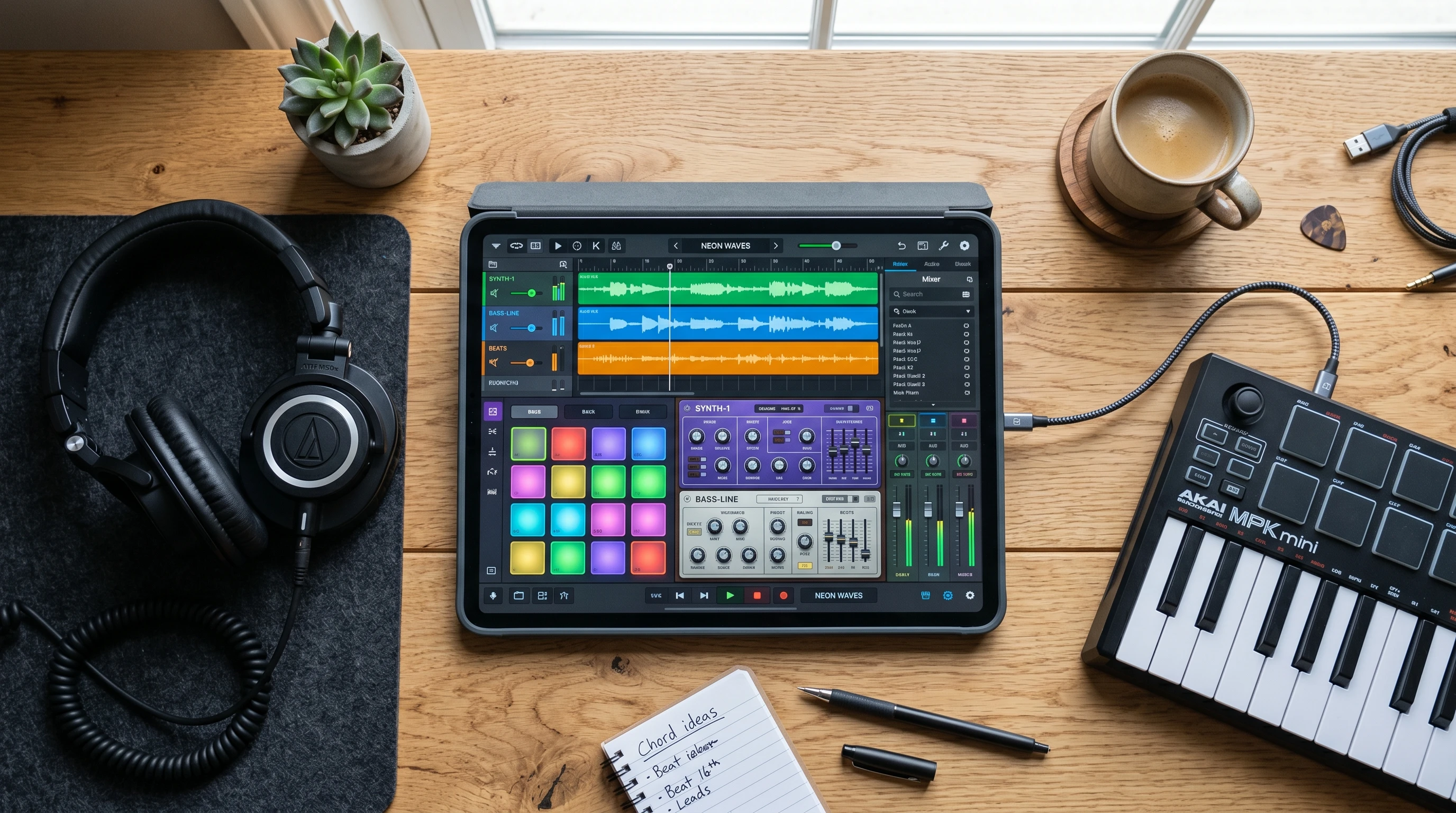
- MIDI Keyboard Controller: Small controllers like the Akai MPK Mini or Arturia Keystep plug in via USB or a Lightning adapter, making melodies a lot easier to play in.
- Audio Interface: If you want to record vocals or real instruments, a compact interface like the Focusrite Scarlett or iRig HD adds better sound quality and lets you plug in guitars and mics.
- Headphones or Monitors: Over-ear headphones give you way better clarity when mixing compared to the iPad speakers.
- Stylus: For detailed editing, a stylus like the Apple Pencil can help with small touch controls in some apps.
Common Hurdles When Making Music on iPad
- Processing Power: The more tracks, instruments, and effects you use, the harder your iPad has to work. If you run into stuttering, try freezing tracks or bouncing to audio.
- Cloud or Local Backup: iCloud or Google Drive are decent for extra backup, but local storage is always handy for bigger files and working offline.
- Touchscreen Fatigue: Editing tiny MIDI notes or mixing on a touchscreen can get tiring after long stretches. Taking short breaks usually helps keep the fun going.
Pro Tips to Get the Most From iPad Music Apps
Once you’re comfortable making your first few tunes, some techniques can help you get creative and move toward pro-sounding results:
Try Sound Packs and Loops: Many music apps offer expansion packs with new instruments or ready-to-use loops. These are really handy for inspiration or filling out arrangements quickly.
Automate Effects and Mixes: Most DAW apps let you record effect changes, like filter sweeps or volume fades, right onto your track. Automation adds a lot of movement and makes tracks sound more dynamic.
Team Up Across Apps: Tools like Audiobus or Ableton Link let you sync and layer sounds from multiple music apps for some wild combos.
Experiment With Genres: Don’t get stuck in one style. Swap instruments or rhythm kits, try importing samples, or use unexpected effects to stretch your creativity.
Real-World Examples of iPad Music Creation
People use iPads for all sorts of music-making. A few ways I’ve seen these tools put to work:
- Songwriting: Crafting entire demos, building drum grooves, and layering vocals to sketch song ideas quickly without a studio.
- Live Performance: DJs and electronic artists trigger backing tracks, effects, and beats live from their iPad, thanks to apps like Loopy, Launchpad, and GarageBand.
- Practice and Learning: Musicians practice using metronomes or play-along apps, slow down songs for ear training, or use score-reading companions.
Frequently Asked Questions
How hard is it to learn music production on an iPad?
It’s pretty accessible! Apps like GarageBand are aimed at beginners and walk you through getting started. Practice and play help everything click faster. As you get comfortable, you can check out online forums or video tutorials for more tips and tricks to continue improving.
Can I use my own samples or recordings?
Most DAWs and sampling apps let you import your own sounds or record right into the app with the iPad microphone or an external mic. You can build your own custom library over time, so your tracks really reflect your style.
What’s the best way to share finished songs?
You can export tracks to Files, email, AirDrop, or upload straight to music sharing platforms. Some apps also connect with social media for super quick posting. Plus, there are third-party services like Bandcamp or SoundCloud where you can get your music out to a larger audience quickly.
Start Your iPad Music Adventure
Jumping into music creation on iPad can be super fun and rewarding, even if you’re totally new. With a mix of the right apps, a creative attitude, and maybe a bit of extra gear, you can turn any place into a music studio. Don’t be afraid to experiment, check forums for inspiration, and see what music you can make. Your workflow will grow along with your confidence; keep exploring, and eventually you’ll find some great sounds are just a tap away. The world of iPad music making is waiting, so let loose and get creative—your next track could be only a few swipes away.